UniFi Protect 7.3 + ONVIF Cameras… Is It Finally Time?
October 9, 2026It’s October of 2026, and UniFi Protect 7.3 just got released. In this video, we’re going to cover what’s changed since last year’s UniFi Protect 6.1 video, what’s working, what isn’t, and whether I still think UniFi Protect is the best home security and surveillance system.
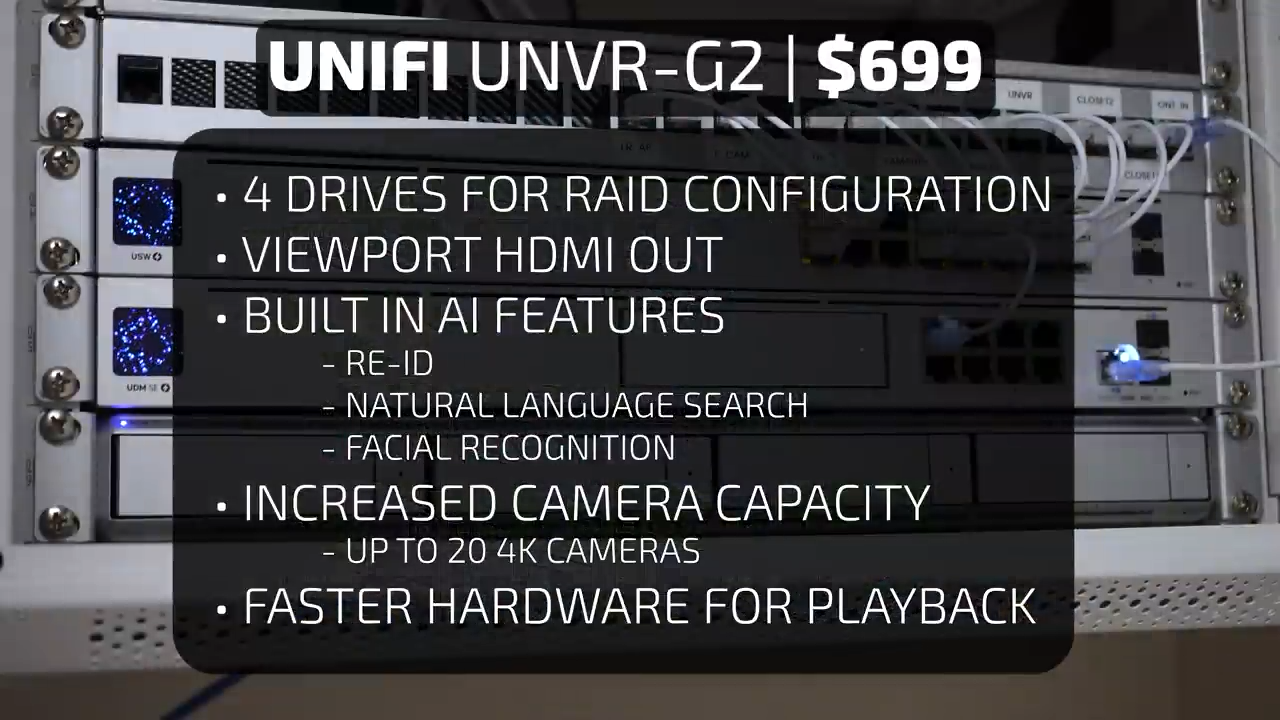
Starting with the new G2 UNVR, which at $699 is a significant price increase from the original $299 UNVR, it has the same four-drive configuration, but it includes a direct HDMI out, which used to require a $199 Viewport. It also includes a lot of the best AI functionality that otherwise required the separate $799 AI Key, so if you’re interested in being able to use Re-ID to track people through multiple cameras and recordings, or you want to use natural language to search your footage instead of just standard person, animal, and vehicle detection, then the UNVR G2 is more cost-effective than getting a UNVR, Viewport, and AI Key, not to mention the better video playback performance and higher camera capacity from the hardware upgrades.
Moving on to software changes, one of the big announcements in Protect version 7 was the ability to get ONVIF motion events from 3rd party cameras instead of just recording 24/7 like in version 6. So I got out my big box of cameras to test each brand’s compatibility, and the results were relatively disappointing.
For each camera, I used ONVIF to connect to UniFi Protect, but I also added the camera to Home Assistant via the ONVIF integration to be able to confirm which ONVIF event types were being broadcast.
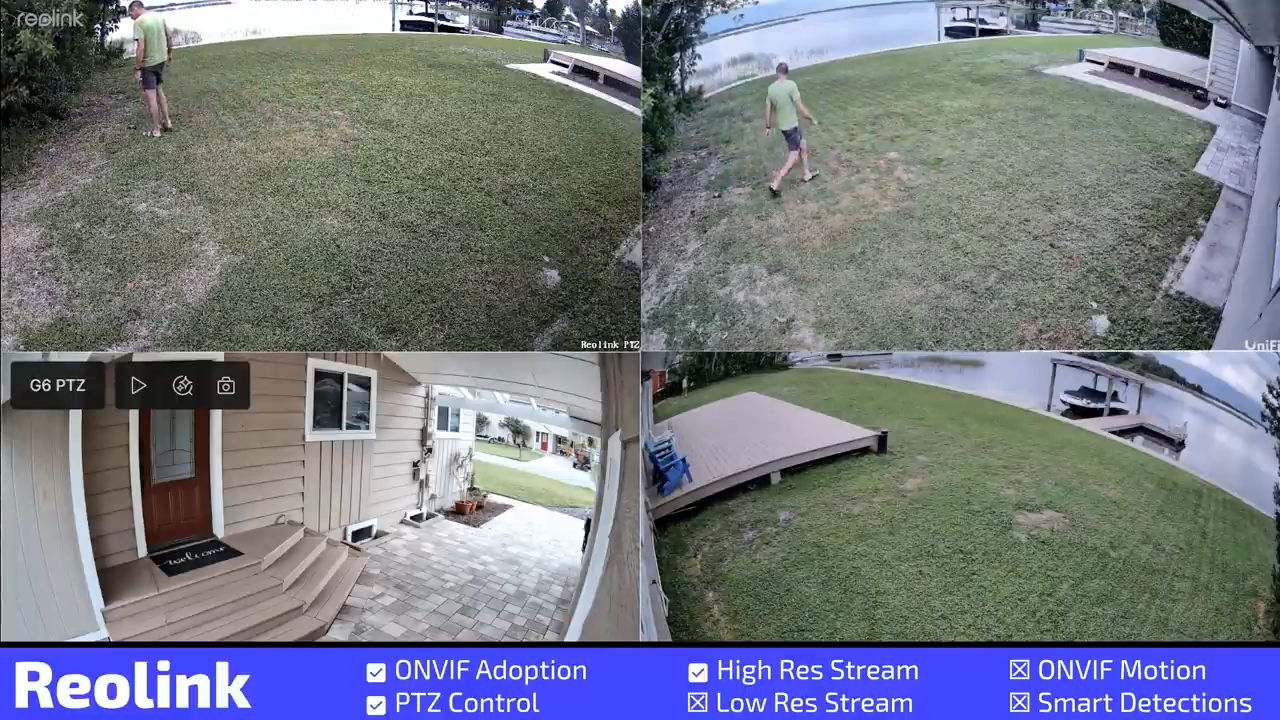
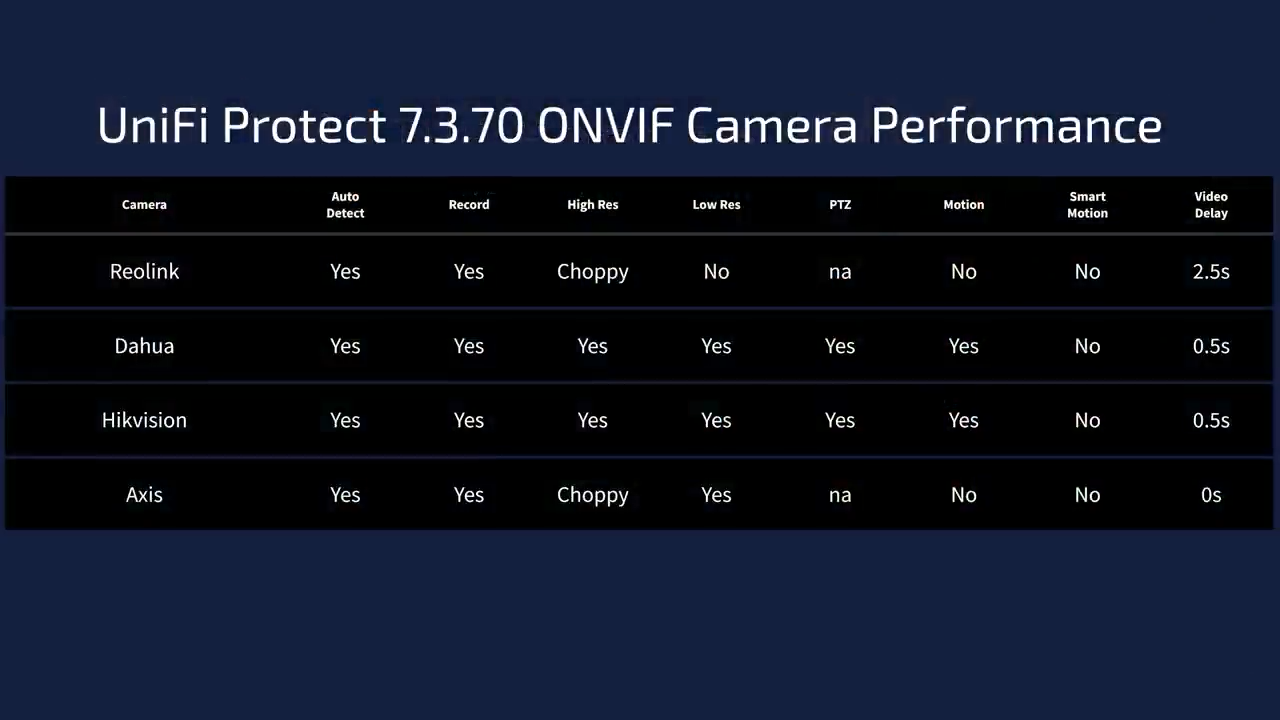
Starting with the cameras that I think most people are interested in mixing into their UniFi protect system, Reolink’s Duo cameras were automatically detected, displayed the correct resolution and aspect ratio, and were resizable in the Protect Live View. But high-resolution footage was choppy in both playback and recording and had about two and a half seconds of delay compared to my UniFi cameras, the low-resolution stream wasn’t recognized by UniFi Protect, and the ONVIF motion events were not being read properly as of Protect version 7.3.70. As mentioned, I did confirm that standard motion and smart motion events were being sent to Home Assistant via ONVIF, but they weren’t triggering recordings in Protect. I also tested a Reolink PTZ camera, the 823A, and it was also automatically detected, PTZ controls worked in UniFi protect, and it was significantly less choppy than the Duo with about one and a half seconds of delay. But it also didn’t support a low-resolution camera feed and didn’t trigger motion events in UniFi Protect despite working properly in Home Assistant.
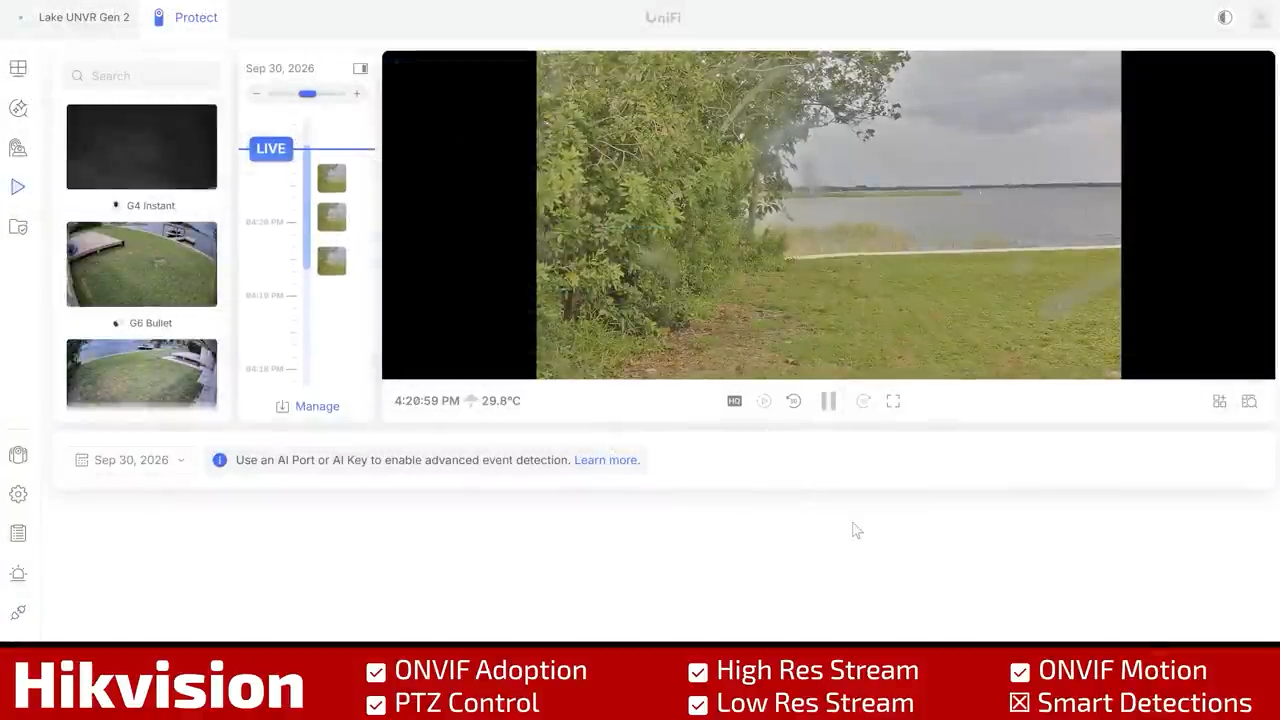
Moving on to Hikvision and Hikvision OEMs, I tested an Annke Speed Dome PTZ and it was automatically discovered and adopted without any issue, had no issues switching between high- and low-resolution feeds, had fully functional PTZ controls, only a half second of delay compared to UniFi cameras, and did record motion events into the UniFi protect timeline. But unfortunately, on Hikvision cameras there’s no way to turn on only smart events without enabling generic motion detection, and UniFi Protect doesn’t differentiate between smart events and generic motion, so the motion events are still of limited usefulness.
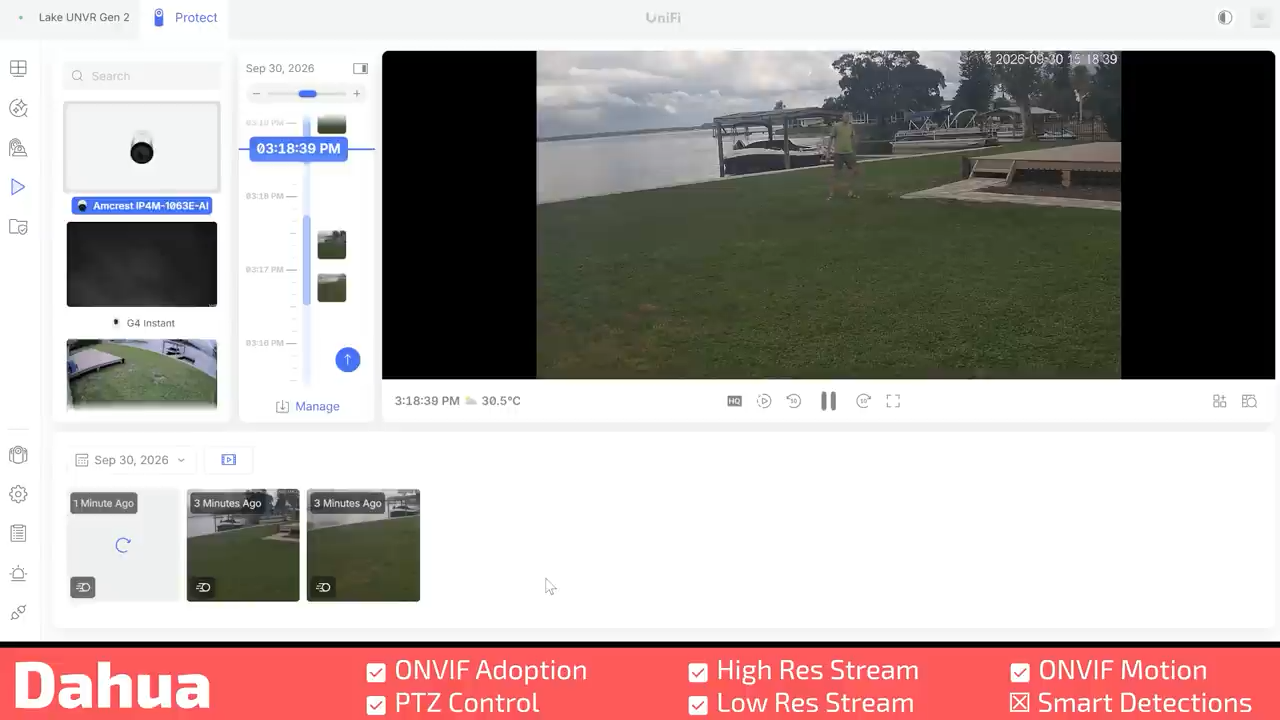
Dahua and Dahua OEM cameras had similar performance to the Hikvision and my Amcrest 4 megapixel PTZ camera had fully functional auto discovery and adoption, high- and low-resolution feeds, functional PTZ controls, about a half a second of delay in the live feed, and motion events marked in the timeline, but no distinction between generic motion and smart motion events, and no way to turn off just generic motion in the Amcrest UI.
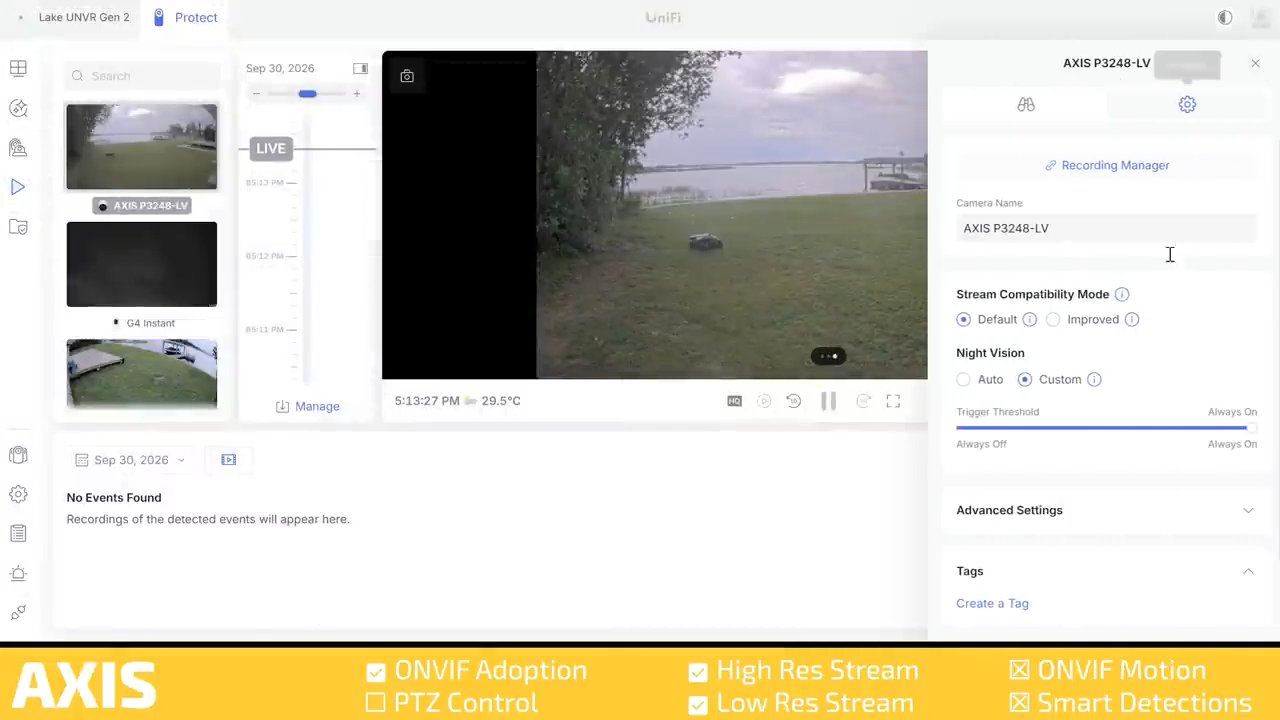
Last, my AXIS P3248 had all kinds of issues with choppy video and recordings, and even though it had very little live view delay compared to my UniFi cameras, it was basically a slide show rather than a video feed, and despite showing both smart and generic ONVIF motion events in Home Assistant, none of the motion events from Axis VMD4 or Axis Object Analysis were marked in the UniFi Protect timeline.
So while Protect 7.3 is a slight upgrade in ONVIF performance, specifically for Hikvision and Dahua OEM cameras, this new functionality doesn’t change my opinion that if you’re going to use UniFi Protect, you should really only use UniFi cameras, especially now that they have a wider variety of reasonably priced camera types like the $299 G6 180 that competes directly with the Reolink Duo, the $399 dual lens G6 PTZ that competes with the Reolink TrackMix, and the G6 Turret that gets you 4K resolution, smart detections, and a 1/1.8” sensor for $199.
Third-party camera integration may be a little disappointing, but integration with third-party smart home platforms has gotten significantly better. Thanks to UniFi Protect’s new fully local public API and awesome development by Raphael Hehl who maintains the Protect integration, it has the highest possible platinum Home Assistant rating, using local push, and exposes dozens of sensors and controls as well as a high- and low-resolution camera feed, and combining the integration with webhooks in UniFi’s alarm manager elevates UniFi protect to the “anything is possible” level that I’m used to with Home Assistant.
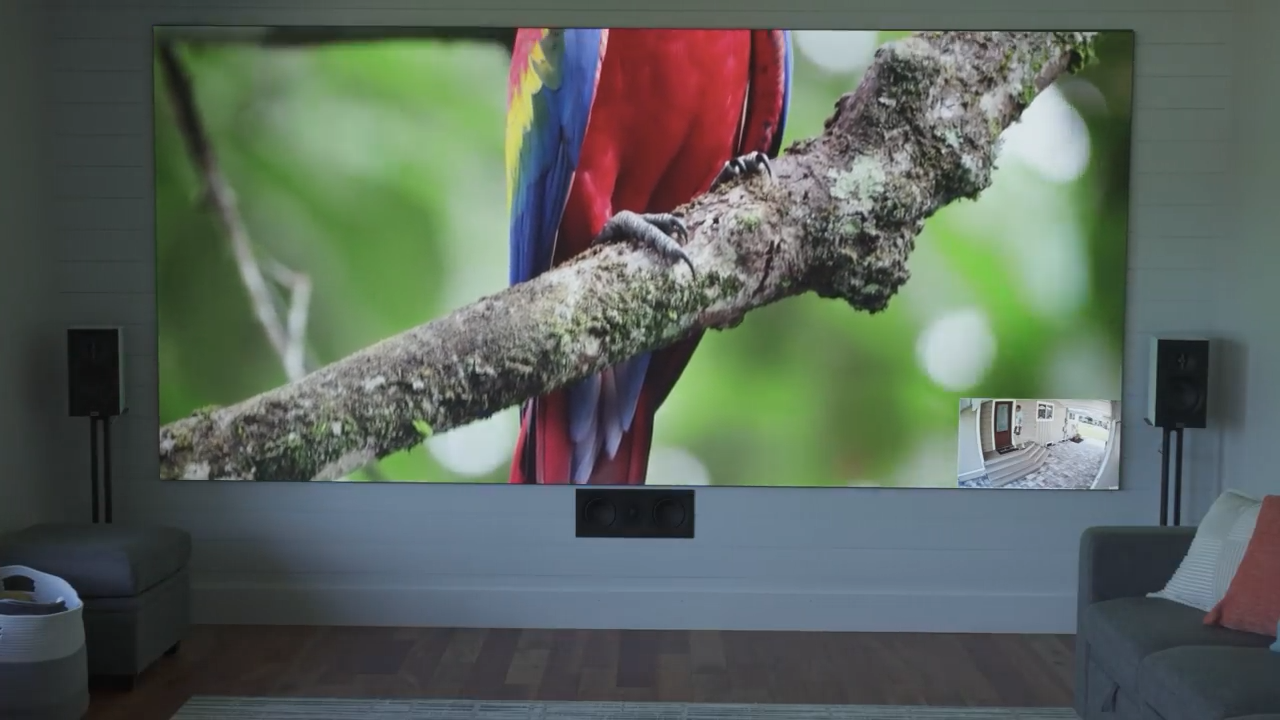
For instance, in UniFi Protect I set up a zone around the front door to the house and an Alarm Manager set up so that if a person is detected in that zone, it sends a webhook to Home Assistant. Then in Home Assistant it checks to see if the TV is on, and if it is, it puts an overlay on the screen showing the side door. Then once the “person detected” sensor clears, it turns that overlay back off.
UniFi Protect also added the ability to put webhook shortcuts directly onto a camera feed, so you can do things like turn lights on and off directly from the Live View. In my case, I have a motion light in the breezeway, but if you quickly toggle the switch on and off you can manually activate the light. So in Home Assistant, I made a script to quickly turn the smart switch off and then back on, and I put that in an automation that uses a webhook as a trigger. So now, when I click the button on the Live View, it triggers the motion light and the camera switches to color mode. As mentioned, all of this is 100% local, no cloud, no data centers, all handled directly on the UNVR and Home Assistant.
To test all of that, I unplugged the internet cable to see if I could get anything to break. On the TV you can see the camera Live View directly from the UNVR G2’s HDMI port, on the left side of my laptop screen is the Protect Live View from the unifi.ui.com portal, and on the right is the Protect Live View directly connected to the local IP address. You can see that after unplugging the internet, there is zero change in functionality and all three operate with zero delay.
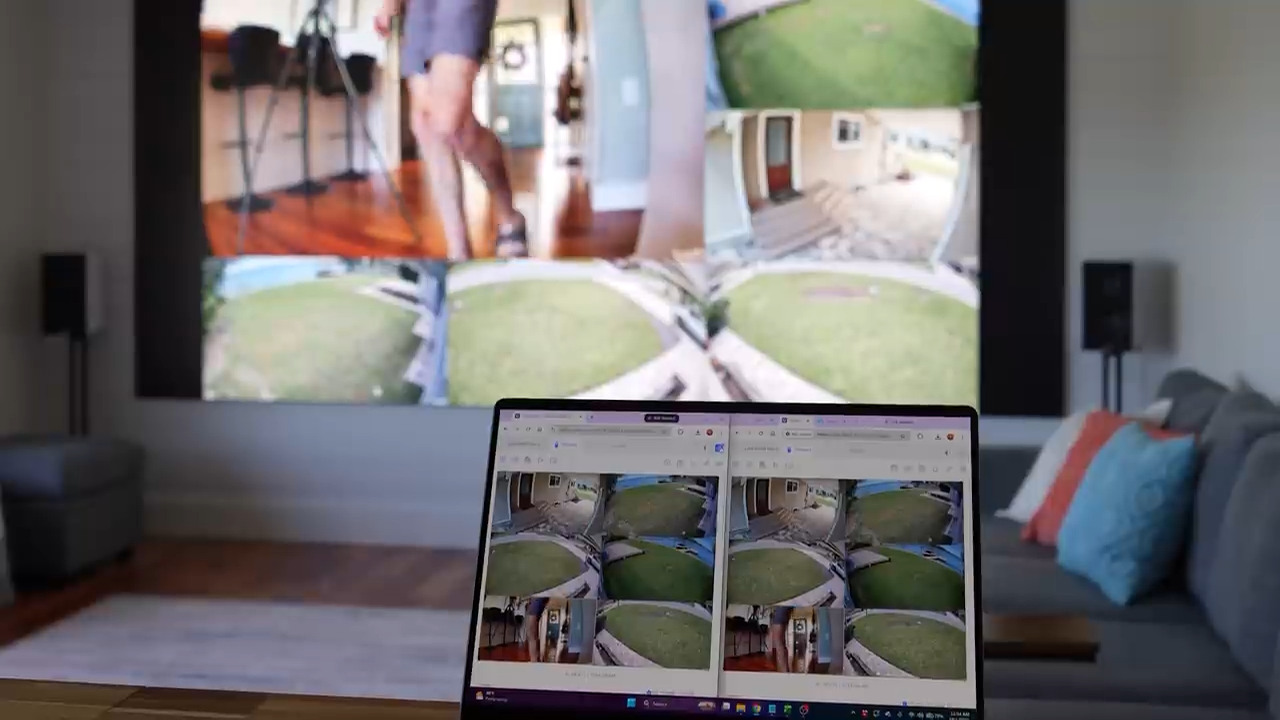
Home Assistant also doesn’t skip a beat, and all the sensors remain instant and even Find Anything’s natural language search works perfectly without internet because everything is processed locally on the UNVR itself.
However, there is one new feature that is obviously impacted by an internet outage, and that’s the new Teleport Adoption, which lets you adopt a camera to a remote UniFi protect installation. So if you have a second property with a UniFi gateway, but no NVR, you can record directly to your main site. After adopting a camera remotely, I disconnected the internet while on a FaceTime with my wife and as expected, the camera feed instantly froze and dropped out. After the internet came back, it reconnected after approximately 20 seconds, which is about the best-case scenario, but I was disappointed to see that the camera doesn’t have any internal cache, so all the footage from the outage was completely lost.
That said, a lot of the new G6 cameras have an SD card slot that will continue recording during an internet outage. So if you’re running a Teleport camera, I’d highly recommend also installing an SD card, and I’d love to see UniFi Protect automatically recover lost footage into the timeline in the future, but for now you do need to manually download it from the SD card.
Other than that, Protect 7 also added a bunch of smaller quality of life improvements to the web view including widgets for spotlight events which are custom searches set up using AI detection, zones, line crossing, or just generic motion on a specific camera, a separate widget for your most recent detections, and a quick toggle switch called Time Machine that lets you quickly rewind the live view for all of your cameras. Also, the live view itself got significantly more configurable, with drag and drop repositioning and resizing, and they finally added the ability to adjust the camera’s aspect ratio for panoramic cameras and cameras that are mounted in corridor mode. But sadly, my number one Protect request which is click and drag panning on a zoomed in image still isn’t implemented.
So, is UniFi Protect still the best home security camera system? Not all the features are perfect, and I still think trying to make 3rd party cameras work in Protect is a huge headache that completely flies in the face of the general ease of use and reliability of a full UniFi system.
But the new lineup of reasonably priced G6 cameras plus the small changes in the Protect interface make the overall ecosystem better than it’s ever been. The thing that continues to sell me is that I can unplug the internet and basically everything still works, I can use Home Assistant and the local API to integrate Protect into the rest of my smart home, and if you don’t want to do any of that, the basic experience of plugging in a camera, adopting it, and having everything just work as well as it does in Protect is surprisingly uncommon when it comes to completely local security camera systems.
As for the new UNVR G2, at $699, I don’t think everyone with an existing UNVR should immediately run out and upgrade. If you don’t care about Find Anything, Re-ID, or the HDMI output, there isn’t a big reason to choose it over the older, less expensive UNVR, but if you’re building a new system, you want those AI features and were considering buying an AI Key and Viewport anyway, the G2 makes a lot more sense.
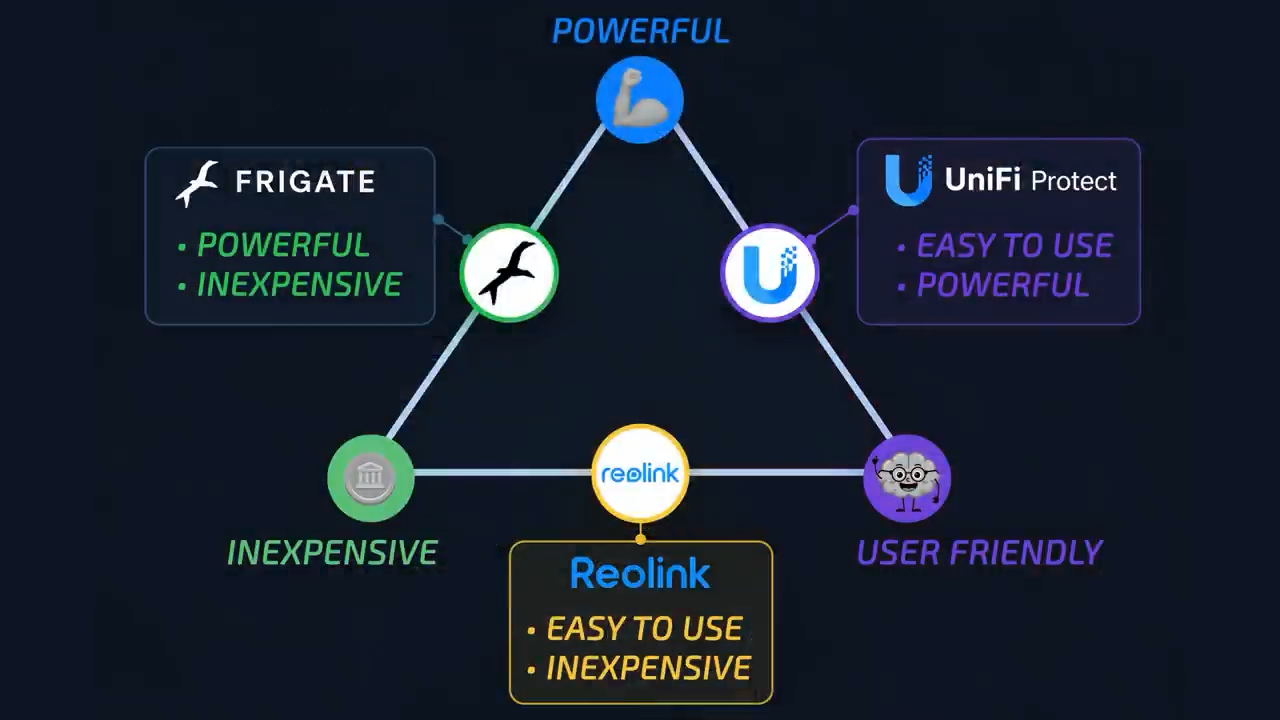
So yes, for a whole-home security camera system, UniFi Protect is still my number one recommendation in 2026, especially if you already have a UniFi network. While you can build a cheaper but less powerful system with Reolink or an equally powerful but much harder to use system with Frigate, no other system matches the ease of use and power of UniFi protect.
As always, there are no sponsored reviews on this channel, but if you’re interested in picking up any of the UniFi gear in this video I’ve got links below, and as always, I appreciate when you use those links since as a UniFi affiliate I do earn a small commission on the sale at no cost to you.
I’d also like to thank all my patrons over at Patreon for their continued support of my channel, and if you’re interested in supporting my channel, please check out the links below. If you enjoyed this video, please consider subscribing to my YouTube channel and as always, thanks for watching The Hook Up.